- Type regedit in Vista's start menu search box and hit enter to open the registry editor.
CAUTION
Before start playing with registry please take a restore point or take a registry backup. For registry backup(FILE->Export->)to save the registry file.
- Navigate to the following key:
HKEY_CURRENT_USER\Software\Microsoft\Windows\CurrentVersion\Policies\Explorer
- Here you will see a lot of DWORD valuenames.
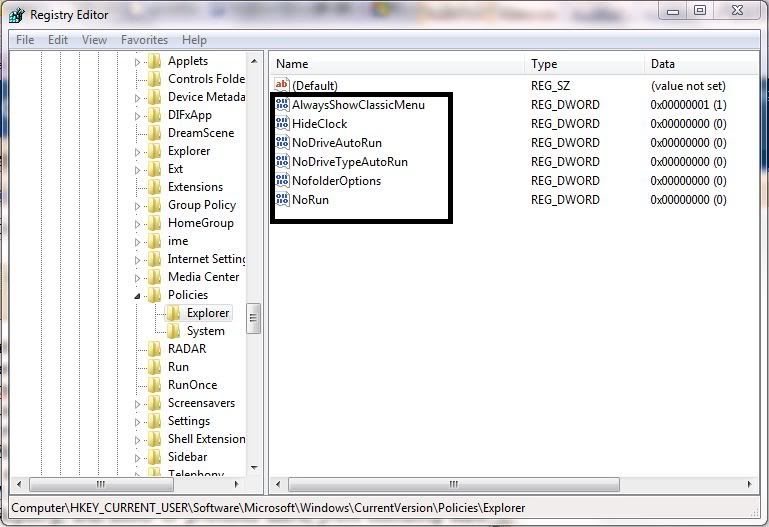
- Our new DWORD values are ,
- "NoTrayItemsDisplay" : Hides the Task Bar notification area
- "NoToolbarsOnTaskbar ": Do not display any custom toolbars in the taskbar
- "QuickLaunchEnabled ": Enable QuickLaunch bar display in the TaskBar
- "NoSimpleStartMenu" : Disabling it will force the Classic Start Menu
- "NoStartMenuPinnedList ": Remove Pinned Programs list from the Start Menu
- "NoStartMenuMorePrograms ": Remove “All Programs” list from the Start menu
- "NoStartMenuMyGanes ": Remove Games from Start Menu
- "NoStartMenuMyMusic ": Remove Music from Start Menu
- "NoStartMenuNetworkPlaces ": Remove Network from Start Menu
- "NoTaskGrouping ": Prevent grouping of Task Bar items
- "HideClock ": Hides from the Task Bar notification area
- "NoSMBalloonTip ": Remove Balloon Tips on Start Menu items
- "NoAutoTrayNotify ": Turn off Task Bar area cleanup notification
- "LockTaskbar ": Lock the Taskbar and prevents the User from moving or resizing it
- "NoSearchCommInStartMenu ": If enabled Start Menu search will not search for Communications.
- "NoSearchProgramsInStartMenu" : If enabled Start Menu search will not search for Programs.
- "NoSearchInternetInStartMenu ": If enabled Start Menu search will not search for Internet History
- "NoSearchFilesInStartMenu ": If enabled Start Menu search will not search for Files
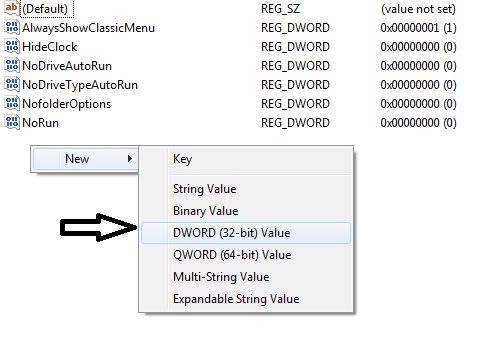
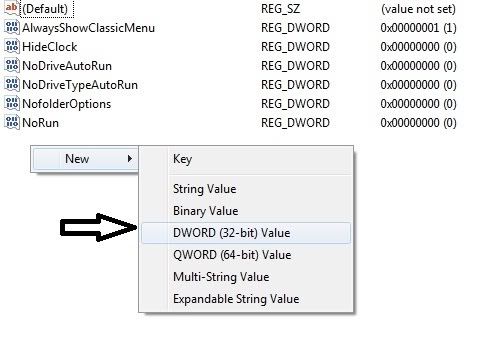
To create them, rt click in any blank space in RIGHT SIDE PANEL > New >Dword value.(DWORDS are CASE SENSITIVE).
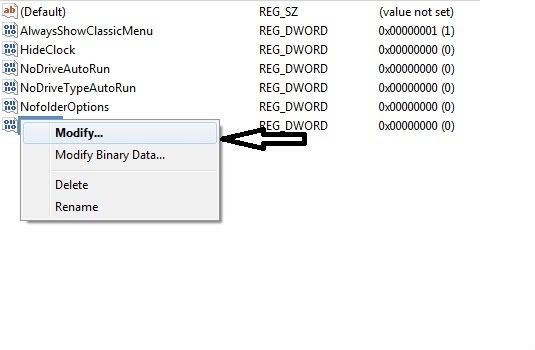
- To modify the value data, you rt click on the name and select modify. Then in the value data box, you set its HEXADECIMAL value. Setting the value of respective DWORD to 1, means that it will have the effect as described in the Value Name. Setting the value of respective DWORD to 0, means that it will have the OPPOSITE effect as described in the Value Name.
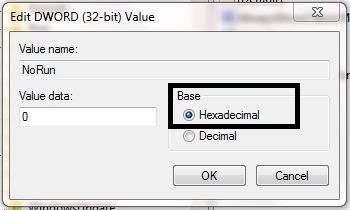
This list is not exhaustive. You can simply study the registry key's DWORD's, illustrated above and see that there would be many more such tweaks or hacks available. The ValueNames are roughly indicative of what they would do. Take the example of NoRun. Its value is set at 0. If you open Taskbar & Start Menu Properties > Star Menu Tab > Start Menu > Customize. You will see a checkbox to Add Run command to the Start Menu. But if you now go back to regedit, and change the DWORD of NoRun to 1, and now go back to the Start Menu properties box, you will see that the item to Add Run itself will be missing ! So, enabling or disabling such options through Vista Registry, will allow or prohibits users, from executing such actions through the Properties box.


No comments:
Post a Comment